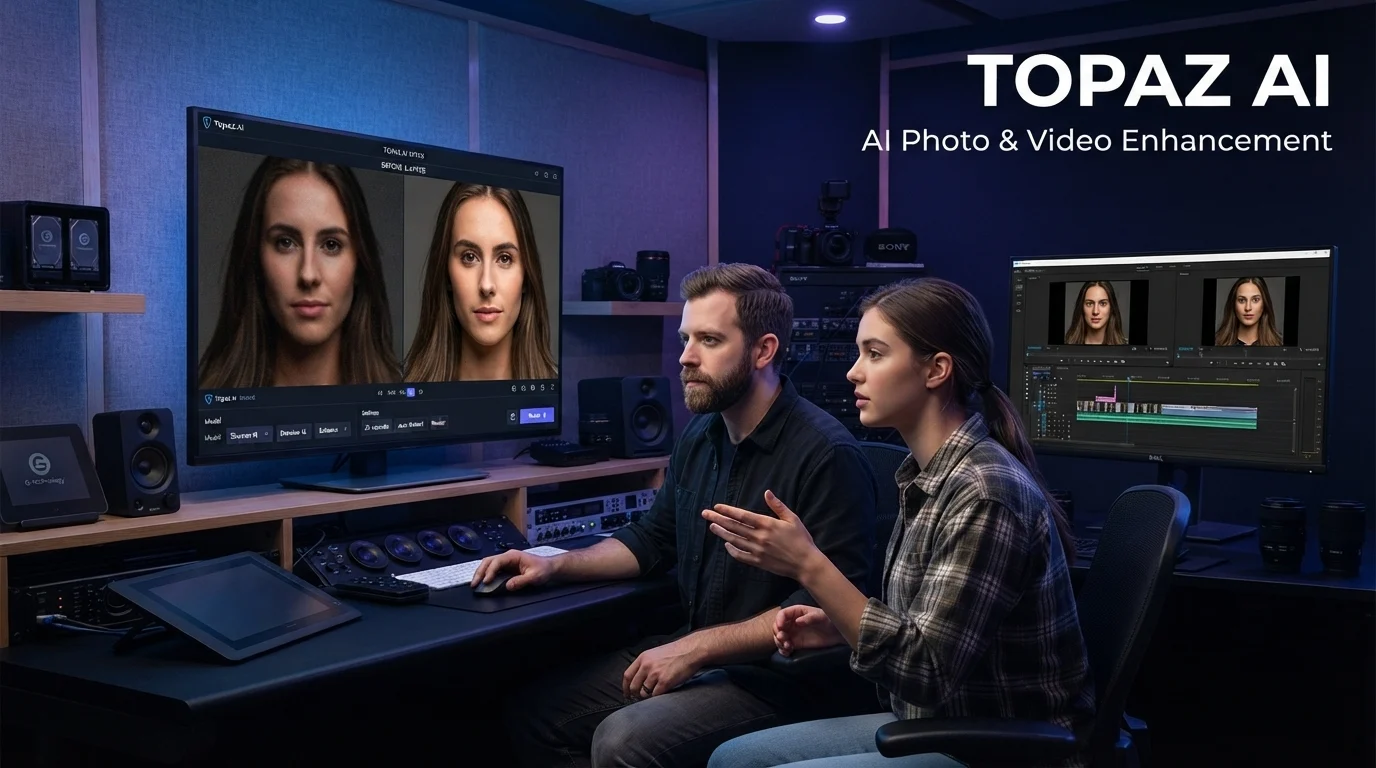
Topaz AI is a suite of AI-powered image and video enhancement tools from Topaz Labs that helps users sharpen photos, reduce noise, upscale images, and improve video quality. It is designed for photographers, filmmakers, and content creators who want to improve existing media, but results, processing speed, and costs depend on the product, hardware, and workflow.
At a Glance: Topaz AI
- What it does: Enhances photos and videos using specialized AI models.
- Main products: Topaz Photo, Topaz Gigapixel, Topaz Video, and browser-based enhancement tools.
- Best for: Photographers, video editors, restoration specialists, and creative professionals.
- Key capabilities: Noise reduction, sharpening, image enlargement, facial detail enhancement, and video upscaling.
- Pricing: Paid subscriptions and product-specific plans, with options varying by product and license type.
- Main limitation: Processing can require substantial computing resources, and AI enhancement cannot guarantee the recovery of genuine details that were never captured.
What Is Topaz AI?
Topaz AI is the common name for the AI-powered creative software ecosystem developed by Topaz Labs. Rather than focusing on generating images from text prompts, its core tools specialize in improving photographs and video footage that already exist.
The software uses machine-learning models trained to recognize visual patterns, including edges, textures, noise, faces, and motion. Depending on the application, these models can reduce image noise, correct some forms of blur, increase resolution, or create intermediate video frames.
Topaz Labs now offers several products for different workflows. The current product lineup includes desktop software, browser-based tools, and mobile options.
Topaz AI vs. Topaz Photo AI
One important distinction is that Topaz AI is not the name of a single application.
Topaz Photo AI is a legacy product name that users may still encounter in older reviews and tutorials. Topaz Labs’ current documentation identifies the newer desktop application as Topaz Photo, while Photo AI has its own legacy documentation. This matters when comparing features, system requirements, and license eligibility.
Topaz AI Products and What They Do
Designed for everyday photographic enhancement, including noise reduction, sharpening, lighting adjustments, facial detail enhancement, and selected restoration tasks. It is useful when an image needs more refinement before publication or printing.
Focuses on enlarging images while reconstructing plausible detail. It suits photographers, illustrators, and print workflows that require larger output dimensions.
Enhances moving footage with tools for upscaling, denoising, stabilization, frame interpolation, and slow-motion workflows. It is aimed at filmmakers, video editors, and archival restoration projects.
Provides browser-based image and video enhancement workflows. Cloud processing can help users whose computers struggle with demanding local AI models, although usage limits and available features depend on the plan.
These products overlap in some capabilities, but they are not interchangeable. Choose according to the media you process, the corrections you need, and whether you prefer desktop or cloud workflows.
How Does Topaz AI Work?
Topaz AI uses trained machine-learning models to analyze visual information and estimate how an image or video could look after enhancement.
A conventional resize operation increases pixel dimensions using mathematical interpolation. An AI upscaler can also infer textures, edges, and other visual patterns, potentially producing a more convincing result. However, the inferred details are not necessarily faithful to the original scene.
The general workflow looks like this:
1. Import the original media
Choose a photo or video with visible noise, blur, compression artifacts, or limited resolution.
2. Analyze the content
The selected model evaluates visual patterns and applies its specialized enhancement process.
3. Adjust the enhancement
Choose a suitable model, output size, and strength. Preview the result and check for artifacts.
4. Export and verify
Save the enhanced file and inspect it at full size before using or publishing it.
Local Processing vs. Cloud Processing
Topaz Labs supports local processing for compatible desktop workflows and cloud rendering for supported products and models.
| Factor | Local processing | Cloud processing |
|---|---|---|
| Hardware | Depends on your computer’s CPU, GPU, and memory | Transfers much of the processing workload to remote infrastructure |
| Internet | Needed for installation, activation, and updates where applicable | Needed to upload, process, and retrieve files |
| Cost structure | Depends on the applicable software license | May involve subscriptions, credits, or usage restrictions |
| Privacy considerations | Files processed locally can remain on your device during that workflow | Media is transmitted to a service, so its terms and retention rules matter |
| Best fit | Users with compatible hardware and sensitive local workflows | Users who need supported models without heavy local processing |
Topaz Video explicitly describes local rendering as keeping files on the user’s computer, while its cloud workflow uses cloud credits. Product capabilities and activation requirements vary, so confirm the details for your specific application.
Key Features of Topaz AI
1. AI Image Upscaling
Image upscaling increases an image’s pixel dimensions. It is particularly useful for small photographs, older digital images, and assets that need to fit larger display or print formats.
Topaz Gigapixel documentation describes scaling images by a multiplier or by custom dimensions, with supported enlargement reaching up to 6× in the documented workflow. Actual limits can vary by version and mode.
2. Noise Reduction
Noise reduction helps clean up grain-like patterns, especially in photographs captured in low light or at high ISO settings.
Topaz Photo offers different noise-reduction workflows, including processing designed for RAW images. The appropriate setting depends on the camera file, noise level, and how much fine texture you want to preserve.
3. Sharpening and Blur Correction
Sharpening can improve the appearance of slightly soft images. Specialized models target different problems, such as lens softness, motion blur, or missed focus.
These corrections have limits. Severe motion blur, lost focus, and tiny subjects may contain too little reliable information for a convincing recovery. Aggressive sharpening can also introduce halos or artificial textures.
4. Face and Photo Restoration
Portrait workflows can benefit from facial enhancement, while older photographs may benefit from denoising, sharpening, and restoration tools.
Use these features carefully when the image is evidence, a historical record, or an important personal photograph. AI-generated facial detail can change the appearance of a person rather than recover their exact original features.
5. Video Upscaling and Frame Interpolation
Topaz Video can upscale footage, reduce noise, stabilize selected shots, and create intermediate frames to change playback smoothness or support slow-motion effects.
These operations address different problems. Upscaling changes output resolution, while frame interpolation estimates what may have happened between existing frames. The latter can create visual distortions around fast movement, overlapping objects, or complex scenes.
6. Batch Workflows and Editing Integration
Photographers and editors may need to process many files or move between enhancement software and their main editing application.
Before purchasing, check the current version’s batch-processing behavior, supported file formats, plug-in compatibility, and hardware requirements. These details can differ between products and operating systems.
Topaz AI Pricing: How Much Does It Cost?
Topaz AI pricing depends on the product, subscription duration, license type, and whether you need desktop or browser-based processing. The official pricing page lists separate options for image tools, video tools, bundled subscriptions, and professional use.
The following figures are published prices visible on the official pricing page when checked for this article on October 14, 2026. Promotions, billing terms, and plan availability can change.
| Product or plan | Published price | Intended use |
|---|---|---|
| Topaz Photo | $199/year or $25/month with an annual commitment | Desktop photo enhancement |
| Topaz Gigapixel | $109/year or $19/month with an annual commitment | Desktop image enlargement |
| Topaz Video | $299/year or $39/month with an annual commitment | Desktop video enhancement |
| Topaz for Web, Image | $109/year promotional price shown, or $12/month on the listed annual plan | Browser-based image enhancement |
| Topaz Studio | $399/year | Bundle of multiple Topaz applications |
| Topaz Studio Pro | $799/year | Professional and studio workflows |
Source: Official Topaz Labs pricing page. The listed monthly figures for desktop products may require an annual commitment. Confirm the checkout price and applicable license terms before purchasing.
What About Free Trials and Free Usage?
Free access, trials, and cloud credits can vary by product and promotion. Do not assume that every desktop application has a permanent free tier or that every online tool offers unlimited processing.
Before signing up, check:
- Whether a trial requires payment details.
- Which features and export options are available without payment.
- Whether cloud credits expire or carry over.
- Whether the subscription renews automatically.
- Whether the license covers commercial projects.
- What happens to your access if you cancel.
The pricing page explicitly states that monthly cloud video credits expire at the end of the month and do not roll over for the listed plans. That can matter if your workload varies significantly from month to month.
System Requirements and Performance
Topaz AI is not equally practical on every computer. AI enhancement can consume considerable memory, storage, and GPU resources, particularly when working with high-resolution images or demanding generative models.
For Topaz Photo, the official system requirements provide the following examples:
| Requirement | Windows | Apple Silicon Mac |
|---|---|---|
| Operating system | Windows 10 or 11, subject to the documented version requirements | macOS 13 or later, with newer versions recommended |
| Memory | 16 GB minimum | 16 GB minimum |
| Graphics | Integrated graphics are supported for limited workflows; dedicated GPUs are recommended | Apple M-series processor |
| Storage | Approximately 60 GB of available space on the system drive | Approximately 88 GB of available space |
| More demanding workflows | 8 GB of GPU VRAM is recommended for generative models | 24 GB or more of memory may be needed for large upscales |
These are product-specific requirements, not universal specifications for every Topaz application. The documentation also identifies additional limitations for some processors and generative features. Check the official Topaz Photo system requirements before installing.
Why Hardware Matters
Three factors can influence your experience:
- GPU performance: More capable graphics hardware can improve processing performance for supported models.
- Memory capacity: Large images and demanding enhancement models can consume substantial RAM and video memory.
- Storage space: Model downloads, application files, temporary data, and exports need room.
A compatible computer may still process complex jobs slowly. Test representative files before committing to a large batch or a deadline-sensitive workflow.
Benefits of Using Topaz AI
Topaz AI can be valuable when image quality is the main obstacle between existing media and its intended use.
It can extend the life of older assets. Small photographs, older footage, and archived creative work may become more usable after careful enhancement.
It provides specialized tools. Instead of applying one generic filter to every problem, users can choose workflows for noise, blur, enlargement, or video motion.
It can reduce repetitive editing work. Automated analysis and preset-based adjustments can speed up common tasks, although difficult files still need manual review.
It supports different creative workflows. Desktop applications suit local editing, while browser-based products offer another option for supported tasks.
It offers control over results. Depending on the tool, users can compare previews, change model settings, and adjust enhancement strength instead of accepting every automatic decision.
These benefits are possibilities rather than guarantees. The result depends on the original media, selected settings, hardware, and the type of damage or degradation involved.
Limitations You Should Understand Before Buying
Topaz AI is a specialized enhancement suite, not a universal replacement for a photo editor, video editor, or professional restoration process.
AI Can Invent Plausible Details
When an image lacks sufficient information, an AI model may generate a visually plausible texture instead of recovering the exact original detail.
This is particularly important for faces, fine text, historical images, scientific photographs, and evidence. A sharper-looking result is not automatically a more accurate one.
Processing Can Be Demanding
Large files, multiple enhancement passes, and complex models can take time. Underpowered or unsupported hardware may experience slow processing, export problems, or instability.
Results Can Look Artificial
Excessive noise reduction can make skin or foliage appear smooth. Strong sharpening can create halos, and aggressive upscaling can introduce patterns that were not present in the source.
The solution is to compare outputs at full size and reduce enhancement strength when the result stops looking natural.
It Does Not Replace Full Editing Software
Topaz focuses on enhancement. You may still need software for color grading, compositing, detailed retouching, timelines, sound, captions, and complete creative production.
Subscription Costs Require Attention
The total cost can be higher than the headline price suggests if you need several applications, professional licensing, or cloud processing. Review the renewal terms and the exact rights included in your plan.
Privacy and Security: What Should You Check?
Privacy requirements depend on how and where you process media.
With supported local rendering, the actual enhancement workload can run on your computer. Cloud processing, by contrast, requires sending files to a remote service. Topaz Video documents both approaches.
Before uploading sensitive photographs or business footage, review the applicable privacy policy and product terms. Specifically, check:
- Whether uploaded files are retained after processing.
- How long input files and generated outputs remain available.
- Whether files may be used to improve products or models.
- Who can access stored content.
- Whether deletion is available and how it works.
- Whether the service meets your organization’s contractual requirements.
Do not assume that local processing and cloud processing have identical data-handling practices. Likewise, a security certification, if a provider holds one, would not by itself establish zero data retention.
For confidential legal, medical, commercial, or client media, confirm the precise workflow and applicable terms before processing files.
Topaz AI vs. Alternatives
The right alternative depends on whether you prioritize photo organization, RAW processing, dedicated upscaling, or video editing.
Best suited to photographers who want a broader workflow for organizing images, editing RAW files, adjusting color, and managing photo libraries. Topaz tools may complement Lightroom when specialized enhancement is needed.
A relevant comparison for photographers who want RAW preprocessing, noise reduction, and lens-related corrections before editing in another application.
Suits users who need detailed retouching, masks, layers, compositing, and broader image manipulation. It addresses a wider set of editing tasks than a dedicated enhancement application.
A video-production alternative for editing timelines, color grading, compositing, and audio. It is not a direct substitute for every specialized Topaz enhancement model, so compare the specific correction you need.
Website: DaVinci Resolve.
Comparison Table
| Tool | Target user | Key strength | Pricing transparency | Main consideration |
|---|---|---|---|---|
| Topaz Photo and Gigapixel | Photographers and image restoration users | Specialized photo enhancement and enlargement | Official product pricing page | Hardware demands and subscription costs |
| Topaz Video | Video editors and restoration specialists | AI-based video enhancement and frame processing | Official product pricing page | Processing time and model-specific artifacts |
| Adobe Lightroom | Photographers | RAW editing and photo organization | Official Adobe plans | Not focused exclusively on AI upscaling |
| DxO PureRAW | RAW photographers | RAW preprocessing and noise reduction | Official DxO store | Narrower workflow than a complete photo editor |
| Adobe Photoshop | Retouchers and designers | Layers, compositing, and detailed editing | Official Adobe plans | Broader toolset may be unnecessary for simple enhancement |
| DaVinci Resolve | Video editors | Editing, color, audio, and post-production | Free and paid versions; check current terms | Not a one-to-one replacement for Topaz’s specialized models |
Prices and included features change. Visit each vendor’s official website to compare current licensing, supported operating systems, and the exact capabilities you need.
Who Should Use Topaz AI?
Topaz AI makes the most sense for people who regularly encounter media-quality problems that ordinary editing tools do not adequately solve.
- Photographers: Useful for low-light images, soft details, and preparing photographs for larger output.
- Videographers: Worth considering when footage needs denoising, upscaling, stabilization, or frame interpolation.
- Archivists and restoration specialists: Potentially helpful for older media, provided the output is checked against the original.
- Content creators: Useful for preparing existing visual assets for websites, presentations, and social platforms.
- Print professionals: May benefit from enlarging suitable images, subject to output-quality checks.
It may be less attractive if you only edit occasional smartphone pictures, need a full creative suite, or use hardware that cannot run your preferred models comfortably.
How to Get Better Results With Topaz AI
A careful workflow usually matters more than applying the strongest available setting.
- Start with the highest-quality source. Use the original camera file or least-compressed video available rather than a screenshot or repeatedly exported copy.
- Identify the actual problem. Noise, motion blur, missed focus, compression artifacts, and low resolution require different approaches.
- Choose the appropriate model. Use a denoising model for noise, a suitable sharpening model for softness, or an upscaling workflow when dimensions are insufficient.
- Compare before and after. Inspect faces, hair, fine lines, text, edges, and repeating textures at full size.
- Avoid over-processing. More sharpening or denoising does not automatically produce a better result.
- Export a test first. Check image dimensions, video frame rate, compression, and file compatibility before processing an entire project.
A Practical Example: Restoring an Old Family Photograph
Suppose you have a scanned photograph with visible grain, soft facial features, and limited resolution.
First, preserve an untouched copy of the scan. Apply moderate noise reduction, preview a suitable sharpening or restoration model, and upscale only if the intended display or print size requires it.
Then compare the enhanced version with the original. If the software changes facial features or creates details that are not supported by the scan, reduce the effect or retain the original for historical accuracy.
The same principle applies to old video: clean up the most obvious defects first, then evaluate whether upscaling or frame interpolation improves the result without introducing distracting artifacts.
Latest Developments in Topaz AI
Topaz Labs’ product lineup continues to evolve beyond standalone photo enhancement.
In a May 2026 announcement, the company described an expansion of its image and video tools, including an SDR-to-HDR video upscaler, broader access to newer models, and a streamlined experience for using video enhancement models in Adobe Premiere. The announcement also discussed the Wonder, Starlight, and Astra models. These are company-reported product developments, not independent proof that every model performs equally well on every type of media.
The practical takeaway is to check the current release notes before buying or upgrading. A feature advertised in an announcement may have different availability depending on the application, subscription, hardware, or cloud-processing requirements.
Frequently Asked Questions About Topaz AI
1. Is Topaz AI free to use?
Topaz AI is primarily a paid software ecosystem. Pricing varies by application and subscription, and some web tools or promotions may offer limited access. Check the official pricing page for current trials, free usage options, and export restrictions.
2. Is Topaz AI worth it for photo enhancement?
It may be worthwhile if you regularly work with noisy, blurry, low-resolution, or older photographs. The value depends on how often you need specialized enhancement, whether your computer supports the required models, and whether the results justify the subscription cost.
3. Can Topaz AI upscale images to 4K?
Topaz Gigapixel can enlarge images, and Topaz Video supports video upscaling workflows. However, 4K refers to output dimensions, not guaranteed visual quality. Results depend on the original file, the selected model, and the amount of recoverable detail.
4. Does Topaz AI work offline?
Some desktop enhancement workflows support local processing, but installation, activation, updates, and certain cloud-dependent features can require an internet connection. Requirements vary by application and model, so verify the specific workflow before relying on offline access.
5. What is the difference between Topaz Photo and Topaz Gigapixel?
Topaz Photo provides a broader set of photographic enhancements, including noise reduction and sharpening. Topaz Gigapixel focuses on image enlargement and detail reconstruction. Choose based on your main task, or compare the current bundle options if you need both.
Conclusion
Topaz AI is a specialized collection of AI-powered tools for improving existing photographs and video footage. Its main appeal is the ability to address problems such as noise, blur, limited resolution, and degraded archival media.
Before choosing a plan, compare the specific application, hardware requirements, licensing terms, and local versus cloud processing options. Test representative files and inspect the results carefully, particularly when accuracy matters.
For photographers and video professionals with recurring enhancement needs, Topaz AI may be a useful addition to an existing creative workflow. Casual editors may find that their current software already covers enough of their needs.

Oliver Wilson is an AI researcher and tech writer living at the intersection of human creativity and machine intelligence. At AixOrbit.com, he decodes complex neural networks, generative AI and emerging tech trends into actionable insights making sure humans stay one step ahead of the algorithms.