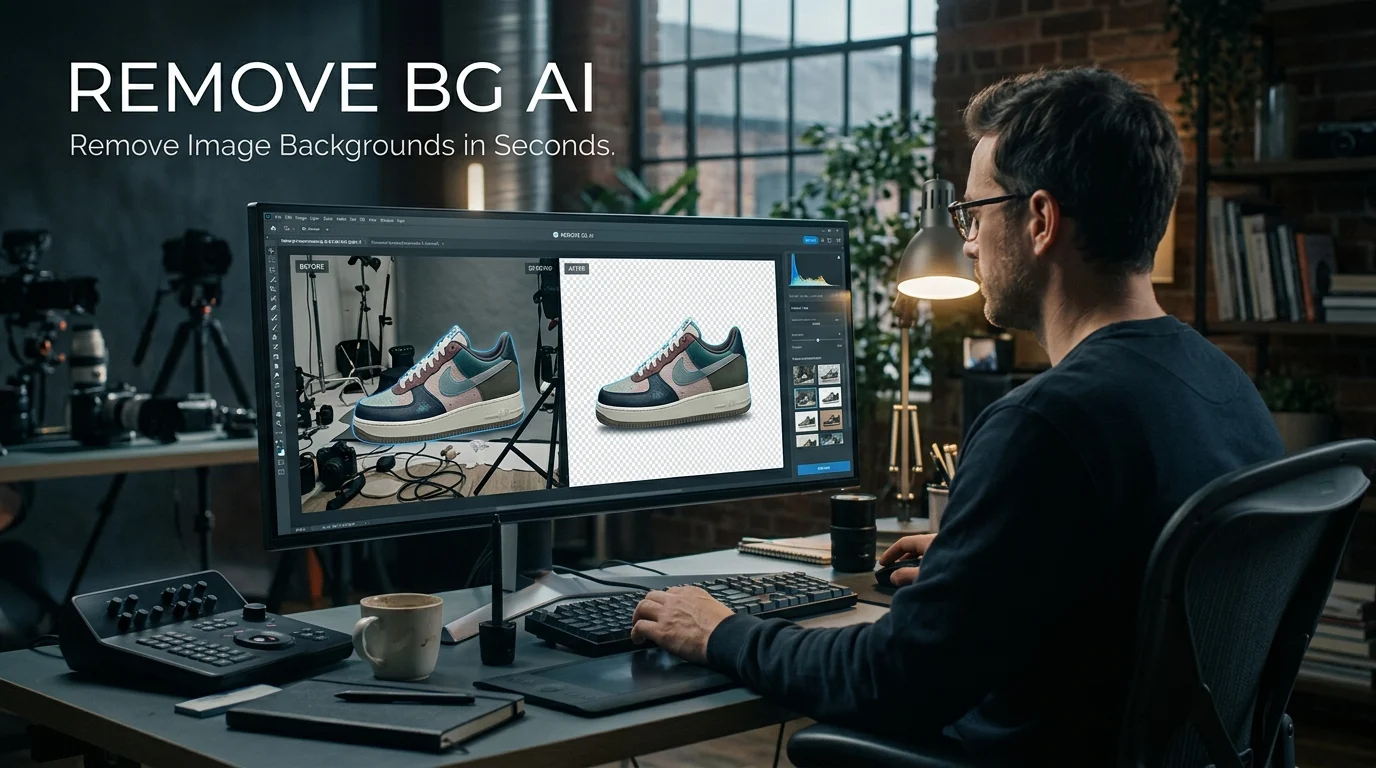
Remove BG AI refers to AI-powered tools that automatically remove image backgrounds, isolate subjects, and create transparent images for product listings, portraits, marketing graphics, and design projects. The service at remove.bg offers automatic background removal, background editing, and workflows for individuals and businesses, with free access and paid options depending on image quality and usage needs.
At a Glance
- Primary purpose: Remove image backgrounds automatically without manually tracing every edge.
- Main output: Images with transparent backgrounds, commonly saved as PNG files.
- Popular uses: E-commerce product photography, profile pictures, social media graphics, presentations, and marketing assets.
- Editing options: The official remove.bg service also offers background generation, background replacement, and tools to refine cutouts.
- Pricing: Free access is available, while higher-quality downloads, credits, automation, and other features may require payment.
- Main limitation: Fine hair, transparent objects, shadows, and subjects that blend into the background may require manual correction.
What Is Remove BG AI?
Remove BG AI is a search term commonly used for AI background removal tools, especially the service known as remove.bg. These tools identify the main subject in a photograph and separate it from the surrounding scene.
Traditional background removal often involves selecting pixels, drawing outlines, or manually creating a mask around an object. AI-powered background removers automate much of this work, making image editing more accessible to people without advanced design skills.
For example, an online seller can photograph a pair of shoes against a cluttered background and create a transparent cutout. A designer can then place that cutout on a white product card, a promotional banner, or a custom campaign background.
The distinction is important: background removal is not the same as generating a new image. Removal isolates the existing subject, while background generation creates or supplies a different scene behind it.
The official remove.bg platform combines background removal with additional editing and automation features. Its exact capabilities and usage allowances depend on the product or plan selected.
How Does Remove BG AI Work?
An AI background remover uses computer vision, a field of artificial intelligence concerned with interpreting visual information. Its model analyzes an image to estimate which pixels belong to the foreground subject and which belong to the background.
The result is commonly represented as a segmentation mask. This mask identifies the parts of the image that should remain visible and the parts that should become transparent.
Choose a photograph containing a recognizable subject, such as a person, pet, vehicle, or product.
The model estimates the subject’s boundaries and distinguishes foreground details from surrounding pixels.
The tool produces a cutout that can be exported or used in another design.
Inspect the edges, correct mistakes if necessary, and download the result in a suitable format.
The process is usually straightforward, but the quality depends on the original photograph, the model, and the complexity of the subject.
A sharply photographed product against a contrasting background is generally easier to isolate than a person with loose hair standing in front of similarly colored foliage.
Key Features of Remove BG AI
The official remove.bg platform is designed for both quick, one-off edits and more structured image-processing workflows. Its feature set extends beyond simply deleting a background.
1. Automatic background removal
The central feature identifies a photograph’s subject and separates it from the original background. This is useful when you need a clean cutout without manually outlining the entire object.
2. Transparent image exports
A transparent background lets you reuse the same subject across multiple designs. You can place a product on a white canvas, add a portrait to a presentation, or integrate a logo into a website.
PNG is a common choice because it supports transparency. By contrast, JPEG does not preserve transparent pixels and may replace them with a solid background during export.
3. Background replacement and generation
After isolating a subject, you may want to change the setting rather than leave it transparent. Remove.bg provides background-editing and AI background-generation features, allowing users to create different visual treatments for their images.
This is useful for promotional graphics, product photography, and social media content. However, a generated background can introduce lighting or perspective inconsistencies that require further editing.
4. Erase and restore tools
Automatic processing is not always perfect. Manual refinement tools can help correct areas where the model accidentally removes part of a subject or retains unwanted background details.
These corrections are especially useful around hair, clothing, jewelry, product handles, and irregular object boundaries.
5. Batch processing and integrations
Businesses often need to process hundreds or thousands of images. Remove.bg offers bulk editing, API access, and integrations intended to support larger workflows. Its website advertises bulk processing of up to 500 images per minute, but actual throughput can vary with image specifications, system capacity, and workflow configuration.
For developers, the API can connect background removal to product catalogs, content-management systems, or internal applications. Before deployment, verify current API limits, output settings, and costs.
How to Use Remove BG AI Step by Step
You do not need programming experience to use a browser-based background remover. The basic workflow takes only a few steps.
- Open the official website. Visit remove.bg rather than an unfamiliar site using a similar name.
- Upload your photograph. Select an image with a clearly visible subject. A product, portrait, pet, or vehicle is a useful starting point.
- Let the tool process the image. The service automatically detects the foreground and removes the surrounding background.
- Inspect the result. Zoom in on the edges, fine details, and any areas where the subject overlaps the background.
- Refine the cutout if needed. Use available editing tools to restore missing details or remove leftover background pixels.
- Choose the output. Download a transparent image when you need flexibility, or use a suitable solid or generated background for a finished design.
Before downloading, check the available resolution and file format. A small preview may be sufficient for a social post but unsuitable for a large product display or print advertisement.
Best Uses for Remove BG AI
The practical value of an AI background remover depends on what you create and how often you edit images.
Sellers can isolate shoes, cosmetics, electronics, accessories, and household products. Consistent backgrounds make catalog pages look more organized and help customers compare items.
Freelancers and professionals can prepare headshots for websites, presentations, CV layouts, and social profiles. Always check hair edges and clothing outlines.
Marketers can reuse a cutout across advertisements, promotional banners, thumbnails, and campaign graphics without repeatedly isolating the same subject.
Transparent images are convenient for slides, infographics, posters, product mockups, and website elements. Designers can combine the cutouts with their preferred colors and layouts.
Dealerships can prepare cleaner images for online listings and promotional material. Shadows, windows, mirrors, and reflections deserve extra inspection.
Benefits of Using Remove BG AI
Faster editing
Manually tracing a complex subject can take considerable time. Automated selection reduces that work, especially when you have a large collection of straightforward product photographs.
Lower barrier to entry
Beginners can create usable cutouts without learning advanced layer masks or selection techniques. Professional editors remain valuable for detailed retouching, but not every image requires that level of effort.
Consistent visual assets
Removing distracting backgrounds helps create a more uniform appearance across catalogs, social posts, and presentations. Consistency still depends on standardizing image size, cropping, lighting, and final background treatment.
Flexible reuse
A transparent cutout can be placed in multiple layouts. You can reuse it across seasonal campaigns, product pages, advertisements, and internal presentations without starting the isolation process again.
Potential workflow automation
API integration can reduce repetitive manual work for teams handling large volumes of images. The benefits depend on the quality of the automated output and how well the API fits the existing production system.
Limitations: Where AI Background Removal Can Fail
AI background removal is useful, but it does not guarantee pixel-perfect results.
| Image challenge | Why problems occur | Practical fix |
|---|---|---|
| Fine hair or fur | Individual strands can be difficult to distinguish from the background | Use a high-resolution image and inspect the edges closely |
| Transparent glass | The subject and background may visually overlap | Check transparency and reflections manually |
| Low contrast | Similar colors make foreground boundaries harder to detect | Choose a clearer photograph or refine the mask |
| Motion blur | Subject boundaries are less defined | Use a sharper original image |
| Shadows and reflections | These may be classified as background | Restore useful shadows or recreate them during editing |
| Complex overlapping objects | The model may merge objects or remove important details | Review each boundary and correct the cutout |
Another issue is image quality. Removing a background does not restore details that the original photograph never captured.
For example, an out-of-focus product may remain blurry after isolation. A low-resolution portrait will not automatically become suitable for a large print simply because its background has disappeared.
The best workflow combines automation with human review. For casual content, a small imperfection may be acceptable. For commercial product photography, logos, and high-value campaigns, inspect the final asset at its intended display size.
Remove BG AI Pricing: What Should You Expect?
Remove.bg offers free access alongside paid options for users who need higher-quality exports, additional credits, or more advanced workflows. The available price depends on the selected plan and usage requirements.
The official pricing page has displayed the following examples:
| Plan type | Published example | Best suited for |
|---|---|---|
| Free access | Basic access and a trial credit for AI edits | Testing the workflow |
| Pay-as-you-go | $3 for 3 credits | Occasional paid use |
| Subscription | $9 per month for 40 credits | Recurring editing needs |
| Enterprise | Starts at 100,000 images per year | High-volume business workflows |
Prices and included credits are examples displayed on the official pricing page at the time of research. Confirm the current offer, export resolution, credit rules, and applicable taxes before purchasing.
Watch for credit and export restrictions
Do not compare image tools using the subscription price alone. Consider how many usable downloads you receive, the output resolution, and whether unused credits expire.
For example, a service that costs less per month may be more expensive for your workflow if it limits exports or requires a higher tier for full-resolution images.
\[ \text{Cost per image} = \frac{\text{Total monthly cost}}{\text{Usable images per month}} \]
Count only images that meet your quality requirements. If you routinely need to correct poor cutouts, the time spent on manual editing is part of the real cost.
An important platform change to check
As of October 27, 2026, the official remove.bg API page states that background removal is scheduled to move to Leonardo.Ai, another Canva company, starting December 1, 2026.
Businesses using the API should check the official migration documentation before building a new integration or renewing a long-term contract. Confirm whether authentication, billing, documentation, endpoints, or other operational details will change for their particular setup rather than assuming that every detail will remain identical.
Remove BG AI vs. Popular Alternatives
Remove.bg is not the only option. Some competitors focus on quick cutouts, while others combine background removal with broader design and photo-editing tools.
The right choice depends on your workflow, budget, and required output quality.
| Tool | Target user | Key strength | Pricing transparency | Main consideration |
|---|---|---|---|---|
| remove.bg | Individuals, developers, and businesses | Dedicated background removal and API workflows | Official credit and subscription plans | Check export limits and API migration details |
| PhotoRoom | Online sellers and small businesses | Product visuals, background replacement, and editing tools | Published subscription tiers and usage allowances | Export limits and AI credits vary by plan |
| Canva | Marketers, creators, and teams | Background removal inside a wider design workflow | Paid-plan feature availability is documented | Background Remover is not included in every plan |
| Adobe Express | Designers and everyday users | Background removal combined with layout and creative tools | A free background-changing tool is available | Fine details may need manual correction |
Sources: official remove.bg pricing and feature pages, PhotoRoom’s pricing and help documentation, Canva’s Help Center, and Adobe’s background-removal guidance.
Which alternative should you choose?
- Choose remove.bg if you want a dedicated background-removal workflow or need to investigate API-based processing.
- Choose PhotoRoom if your work centers on product photography and you want to continue editing images after removing their backgrounds.
- Choose Canva if you already create social graphics, presentations, or marketing designs within its editor and have an eligible plan.
- Choose Adobe Express if you want to remove backgrounds and continue creating designs in Adobe’s online editing environment.
These are workflow-based recommendations, not a universal ranking of image quality. Test each candidate with the same photographs before making a decision.
Privacy and Security: What Happens to Uploaded Images?
Background removal often involves uploading a photograph to a third-party service. That matters when images contain customer information, unpublished products, confidential designs, or identifiable people.
Before uploading sensitive material, review the provider’s current privacy policy and terms of service.
Pay particular attention to:
- Image retention: How long are original images and processed files stored?
- Model training: Does the provider use uploaded content to train or improve AI models?
- Third-party processing: Are images sent to external hosting, analytics, or processing providers?
- Access and deletion: Can you delete stored images, and how quickly are deletion requests handled?
- Business controls: Are contractual privacy terms, administrative controls, or other required protections available for your organization?
Do not assume that a tool deletes every uploaded file immediately. Likewise, do not infer that a provider offers zero data retention simply because it uses encryption or advertises security certifications.
For business use, check the actual policy and contract. If you process confidential client images, obtain the necessary permissions and use a workflow approved by your organization.
For sensitive or regulated material, a locally operated background-removal model may be worth evaluating. However, local processing only reduces certain external data transfers; device security, model dependencies, and local file handling still matter.
Tips for Getting Cleaner Background Removal Results
A good source photograph often makes a greater difference than repeatedly switching between AI tools.
Start with a clear image
Use a sharp photograph with adequate lighting and a visible distinction between the subject and its surroundings. Avoid heavy compression when possible.
Keep the subject fully visible
Images with cropped limbs, hidden product edges, or objects extending outside the frame can make clean extraction more difficult.
Pay attention to hair and fine edges
Zoom in around hair, fur, lace, jewelry, and thin wires. These areas can reveal missing details or unwanted background fragments.
Check the image against different colors
A cutout that looks clean against a white preview may reveal a dark halo when placed on a black background. Preview it against both light and dark colors before publishing.
Preserve realistic shadows
A subject without any shadow can appear to float unnaturally. If the original shadow is useful, preserve it where possible or recreate a suitable one in your design software.
Export for the final destination
Use a transparent PNG when you need a reusable cutout. If your destination requires a solid background or a smaller file, export in a format that matches those requirements.
Always inspect the final downloaded file rather than relying only on the editor preview.
Who Should Use Remove BG AI?
Remove BG AI is most useful for people who frequently need clean image cutouts but do not want to manually select every pixel.
It may suit:
- E-commerce sellers preparing product listings.
- Social media managers creating promotional graphics.
- Freelance designers working with client assets.
- Photographers preparing images for further editing.
- Content creators designing thumbnails and presentations.
- Developers automating image-processing tasks through an API.
It may be less suitable for users who need highly specialized masking, complex compositing, precise restoration, or complete control over every pixel. Professional image editors may offer more detailed control for those jobs.
For occasional personal edits, a free option may be enough. For teams processing many images, consistency, export limits, integration requirements, and the total cost of production become more important.
Common Mistakes to Avoid
Even an effective AI tool can produce disappointing results when the workflow is poorly planned.
- Assuming every image will be perfect: Always review the cutout before publishing.
- Downloading the wrong format: JPEG cannot preserve transparency. Choose PNG when you need a transparent background.
- Ignoring resolution: A small export may look fine on a phone but appear soft on a large screen.
- Forgetting usage restrictions: Check commercial-use terms, credit limits, and export allowances.
- Uploading sensitive images without checking policies: Review retention and processing practices before sharing confidential content.
- Paying before testing: Try representative images first, especially those with hair, transparent materials, or complex edges.
- Overlooking migration notices: Developers should verify upcoming platform changes before committing to an API workflow.
These checks take little time and can prevent avoidable editing costs, poor-quality assets, and operational surprises.
Frequently Asked Questions
1. Is Remove BG AI free to use?
Yes. The official remove.bg website offers free access, while some high-quality exports, credits, and advanced features may require payment. Check the current pricing page to confirm which downloads and editing features are included.
2. How do I remove an image background using AI?
Open an AI background-removal tool, upload your image, and let it identify the main subject. Review the resulting cutout, correct any missing or unwanted details, and download the finished image in a suitable format.
3. Can Remove BG AI create a transparent PNG?
Yes. Transparent images are a core use case for remove.bg. PNG is a common format for preserving transparency, making it suitable for product images, logos, presentations, and graphics that need to work across different backgrounds.
4. Is Remove BG AI safe for private photos?
Safety depends on the service’s privacy policy, storage practices, and data-processing arrangements. Review its image-retention rules and third-party sharing practices before uploading sensitive photographs. Do not assume that every service automatically deletes uploads immediately.
5. What is the best alternative to Remove BG AI?
The right alternative depends on your needs. PhotoRoom focuses on product photography, Canva combines background removal with graphic design, and Adobe Express offers background removal within a broader creative editor. Compare output quality, pricing, export limits, and privacy policies before choosing.
Conclusion
Remove BG AI makes background removal accessible by automating a task that once required considerable manual editing. The official remove.bg platform offers a dedicated solution for transparent cutouts, background editing, and image-processing workflows.
It can be particularly useful for e-commerce sellers, marketers, designers, and content creators. However, results still depend on image quality, edge complexity, export requirements, and the amount of manual refinement needed.
Before choosing a tool, test it with your actual images, calculate the cost per usable export, and review its privacy terms. Developers should also check the announced API migration before committing to a long-term integration.

Oliver Wilson is an AI researcher and tech writer living at the intersection of human creativity and machine intelligence. At AixOrbit.com, he decodes complex neural networks, generative AI and emerging tech trends into actionable insights making sure humans stay one step ahead of the algorithms.