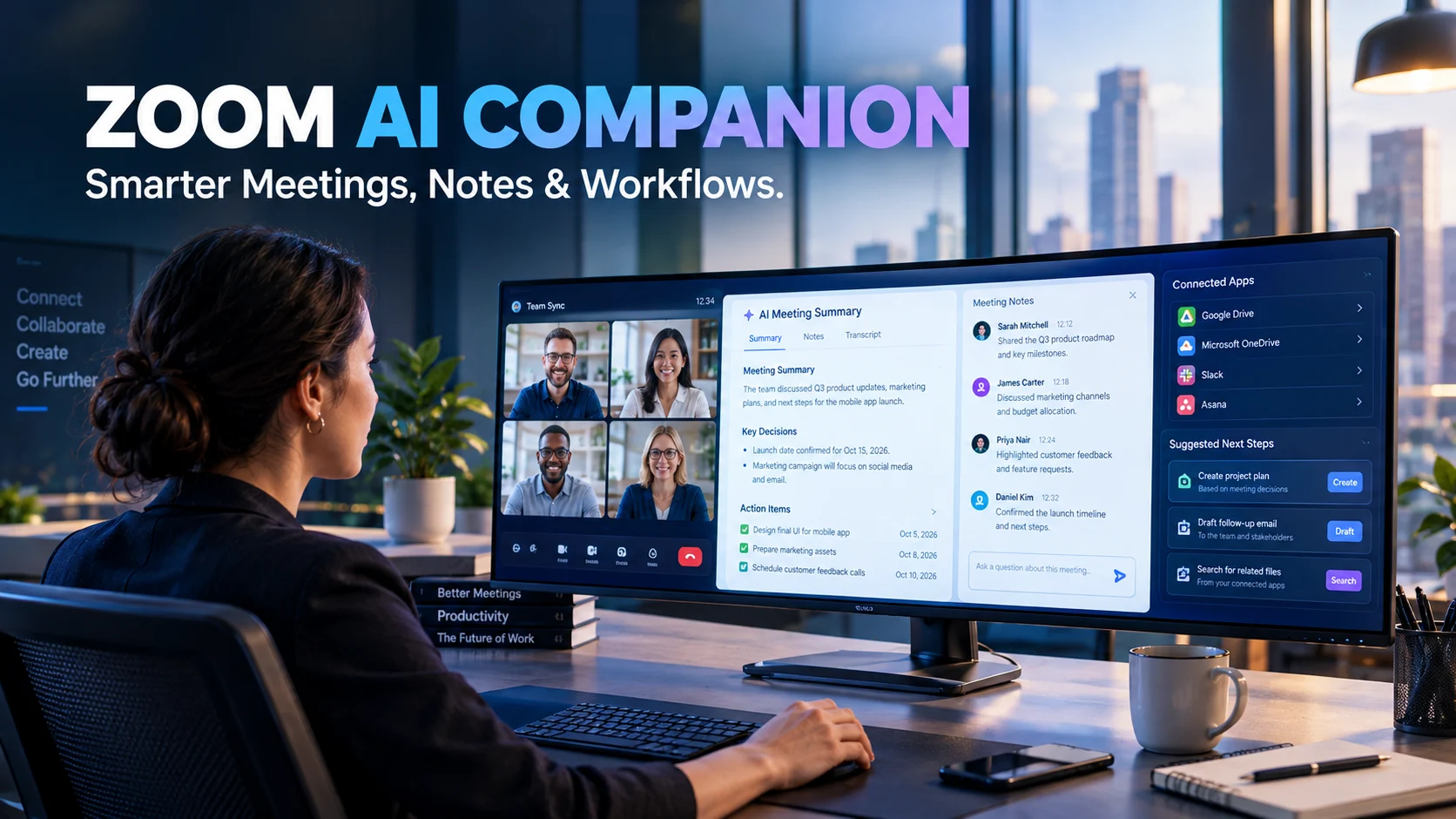
Zoom AI Companion is Zoom’s AI-powered productivity assistant, designed to help users summarize meetings, capture notes, draft messages, and organize work across Zoom Workplace. In 2026, Zoom retired the AI Companion brand as a standalone product label and integrated these capabilities into Zoom Workplace, while introducing ZoomMate for more advanced AI-assisted workflows.
Zoom AI Companion at a Glance
Main purpose
Reduce manual work associated with meetings, communication, note-taking, and follow-ups.
Key capabilities
Meeting summaries, in-meeting questions, AI note-taking, writing assistance, and conversation search.
Latest product direction
AI features are integrated into Zoom Workplace, while ZoomMate adds more agentic search and workflow automation.
Pricing
Some capabilities have limited free access; broader features depend on the plan, add-ons, and usage allowances.
Ideal users
Remote teams, managers, educators, customer-facing professionals, and businesses using Zoom.
What to check
Plan eligibility, AI usage limits, meeting consent, data retention, and organizational privacy settings.
What Is Zoom AI Companion?
Zoom AI Companion is the name many users still use for Zoom’s built-in artificial intelligence features. These tools help people get more value from meetings and workplace communications without manually handling every note, summary, or follow-up.
The assistant can generate meeting summaries, answer questions about meeting discussions, help compose messages, and organize information from supported sources. Depending on the user’s plan and configuration, AI capabilities can also extend to Zoom Docs, Mail, Chat, Clips, and other Workplace applications.
However, the product naming has changed. In July 2026, Zoom retired the AI Companion brand, and its AI capabilities became more deeply integrated into Zoom Workplace. ZoomMate is the newer agentic offering that builds on these capabilities by helping users search for information and carry out multistep work.
This distinction matters when searching for pricing, documentation, or setup instructions. Older articles may describe AI Companion as a single product, while current Zoom pages may present the features under Zoom Workplace or ZoomMate.
Official starting points include the Zoom AI features guide and the ZoomMate product page.
How Does Zoom AI Companion Work?
Zoom’s AI features use meeting content, messages, documents, and other permitted context to generate summaries or responses. The information available to the assistant depends on the feature being used, the user’s permissions, and the organization’s configuration.
A typical workflow follows four steps.
1. Capture the conversation
A supported meeting, recording, or note-taking workflow provides the relevant information.
2. Process the available context
The AI analyzes supported content to identify topics, decisions, questions, and action items.
3. Generate useful outputs
The system can produce summaries, notes, suggested responses, and follow-up tasks.
4. Review and act
Users review the output, correct mistakes, and share or use the results as appropriate.
Some capabilities simply generate information. More advanced agentic workflows can use connected applications and authorized actions to help complete tasks. These are different levels of automation, so do not assume every AI Companion feature can independently send messages, update records, or execute workflows.
Key Features of Zoom AI Companion
Zoom’s AI capabilities cover several stages of the working day. Availability and limits vary by subscription, application, region, and administrator settings.
1. AI meeting summaries
Meeting summaries help participants review the main points without rereading every note or listening to an entire recording.
Depending on the meeting configuration, the generated summary can identify key topics and next steps. It can also be shared through supported Zoom channels.
Example: After a project meeting, a team leader can review the summary, confirm the assigned tasks, and send the relevant follow-up to colleagues.
A summary is not a verbatim transcript. Important decisions, deadlines, names, and commitments should be checked against the original conversation.
2. In-meeting questions
AI can help participants catch up on a discussion or ask questions about the meeting so far.
This is particularly useful when someone joins late, misses part of a conversation, or needs clarification without interrupting the speaker.
For example, a participant could ask what decisions have been made or which issues still need attention. The usefulness of the answer depends on the context available to the feature.
3. AI-powered note-taking
Zoom’s My Notes capability helps users capture notes from meetings and other supported conversations, including meetings on third-party platforms.
This is useful for people who move between Zoom, Google Meet, Microsoft Teams, and in-person meetings. Instead of relying entirely on manual note-taking, they can use AI-generated notes as a starting point for their own records.
Before using cross-platform note-taking, check supported services, usage allowances, recording or transcription behavior, and consent requirements.
4. Writing assistance
AI writing tools can help users compose and revise workplace content. Examples include email drafts, chat messages, document summaries, and changes to tone or length.
A manager might turn rough meeting notes into a professional update. A customer support representative could prepare a clearer response using the available conversation context.
These tools reduce drafting effort, but users remain responsible for checking names, facts, tone, and confidential information.
5. Smart recording and conversation review
Supported smart recording features can organize cloud recordings into chapters, highlights, and other navigational elements. This makes lengthy conversations easier to review.
These capabilities are particularly helpful for training sessions, interviews, sales discussions, and project reviews. Recording-related functionality depends on eligibility and configuration, and it should not be confused with a guarantee that every meeting is recorded automatically.
6. AI across Zoom Workplace
AI assistance is not limited to meetings. Depending on the plan, Zoom also offers AI-powered capabilities across products such as Chat, Mail, Canvas, Clips, Notes, and other collaboration tools.
This creates a more connected workflow: a meeting summary can inform a follow-up message, and meeting notes can provide context for a later document.
However, the extent of this connection depends on which products your organization uses and which permissions or integrations are enabled.
7. ZoomMate and agentic workflows
ZoomMate represents Zoom’s move toward AI that helps users complete work, not just summarize it.
Zoom describes capabilities such as agentic search, AI agents, workflow templates, and task execution across connected applications. These tools can help turn conversations into deliverables, such as project updates, presentations, and follow-up tasks.
The practical distinction is important:
- Traditional AI assistance: Summarizes a meeting or drafts a message.
- Agentic assistance: Uses available context and authorized tools to carry out multiple steps toward a requested outcome.
Agentic features may require additional access, setup, or AI credits. Review permissions carefully before allowing an AI agent to interact with business applications.
Practical Use Cases for Zoom AI Companion
Create meeting summaries, identify next steps, and keep colleagues informed when they cannot attend a call.
Turn discussions into action lists, prepare status updates, and identify outstanding questions that need follow-up.
Review conversation summaries and prepare follow-up messages, subject to the tools and permissions available.
Organize session notes and review key discussion points. Follow institutional policies for recording and student data.
Prepare executive summaries, organize decisions, and turn meeting outcomes into documents or planned actions.
Zoom AI Companion Pricing in 2026
Pricing requires particular attention because Zoom has changed its product naming and packaging. Some older articles refer to AI Companion as a feature set included with paid Workplace plans, while current pricing pages also describe limited access and a separate ZoomMate offering.
Zoom’s published pricing pages show the following broad structure.
| Option | What to expect | Important consideration |
|---|---|---|
| Workplace Basic | Limited AI features and monthly usage allowances | Not every capability is included |
| Eligible paid Workplace plans | Broader AI capabilities integrated into Workplace | Confirm the exact plan and feature eligibility |
| AI Productivity Suite | Additional AI-assisted content creation and productivity tools | AI credits and plan limits may apply |
| ZoomMate | Agentic search, workflows, and AI-assisted task completion | Check included credits and supported integrations |
| Custom AI Companion | Customization and organization-specific capabilities | A paid add-on with eligibility requirements |
Zoom’s published AI Productivity Suite pricing page lists a plan at $8.33 per user per month and ZoomMate at $16.67 per user per month, based on annual billing. These are advertised starting prices for the relevant products, not a guarantee of the total cost for every account.
Check the official Zoom pricing page before purchasing. Prices, billing terms, regional availability, taxes, and plan packaging can change.
Are Zoom’s AI features free?
Some AI functionality is available to free users with limits. Zoom’s current pricing materials describe restricted monthly allowances for meeting summaries, in-meeting questions, My Notes, AI queries, and other capabilities. Paid plans can provide broader access.
The right question is not simply whether Zoom AI is free. It is whether the specific feature you need is included in your account and whether the available allowance covers your normal workload.
What can increase the total cost?
Review these factors before committing to a subscription:
- AI credits: Certain content-generation and advanced productivity features use credits.
- Usage allowances: A free tier may restrict the number of meetings, notes, queries, or workflow runs.
- Additional licenses: Some customization and advanced capabilities require an add-on.
- Annual billing: Advertised monthly-equivalent prices may require an annual upfront payment.
- Existing licenses: Your current Workplace subscription may already include some of the functionality you need.
For a business, estimate the cost per active user and compare it with the time saved on meeting administration, documentation, and follow-ups.
Benefits and Limitations
Zoom’s main advantage is its connection to workplace collaboration. But the usefulness of that integration depends on how consistently a team uses Zoom and how well AI-generated outputs fit its existing processes.
Main benefits
- Less manual note-taking: Participants can spend more time listening and contributing.
- Faster meeting follow-ups: Summaries and suggested next steps help teams move from discussion to action.
- Easier information retrieval: Supported AI search can help users find details across permitted conversations and connected sources.
- Consistent communication: Writing assistance can help standardize routine messages and documents.
- Connected workflows: ZoomMate and other available tools can help link information gathering with task completion.
Important limitations
- Summaries can miss details. Important decisions, numbers, and speaker attribution may require verification.
- Access is plan-dependent. Some features require a paid subscription, an add-on, or administrator approval.
- Integrations require setup. Connected sources may need authorization and may not be available in every account or region.
- Automation needs oversight. AI-generated deliverables and agent-executed actions can be incomplete or incorrect.
- AI credits can affect costs. Advanced content generation and other metered capabilities may have separate allowances.
The greatest benefit comes when AI output fits an existing process. If nobody reviews meeting summaries or follows up on generated tasks, automation alone will not improve team productivity.
Privacy and Security: Is Zoom AI Companion Safe?
Zoom’s AI features may process meeting transcripts, audio-related information, messages, documents, and other context required to provide a requested result. The exact data involved depends on the feature and its configuration.
Zoom’s published privacy materials state that customer content used by AI Companion is not used to train or improve Zoom’s or third-party generative AI models. This is a company statement about its data practices, and organizations should review the applicable terms and documentation for their particular services.
Before enabling AI features, consider the following safeguards.
Review meeting consent and notifications
Tell participants when AI note-taking, transcription, or recording is being used, and follow applicable laws and organizational policies. A meeting summary should not be treated as permission to record every conversation.
Check retention and access controls
Determine where summaries and transcripts are stored, who can view them, and how they can be deleted. Retention settings and administrative controls may differ across products.
Limit connected data sources
AI search and agents may be able to reference connected applications or files. Grant only the access required for the task, and review permissions before enabling actions that can change business records.
Distinguish privacy claims from security guarantees
A statement that content is not used for model training does not mean that all data is immediately deleted, that every feature has zero data retention, or that an organization can ignore its own compliance obligations.
Businesses handling confidential, regulated, or sensitive information should assess the applicable contracts, data-processing terms, access controls, and security documentation before deployment.
Zoom AI Companion vs. Competitors
Zoom’s closest alternatives include meeting assistants, general AI assistants, and collaboration platforms with built-in AI features.
| Tool | Target user | Key strength | Pricing transparency | Core limitation |
|---|---|---|---|---|
| Zoom AI features and ZoomMate | Teams using Zoom Workplace | Meeting context and integrated workflows | Published plan pages; some features and add-ons are plan-dependent | Some capabilities require eligible licenses, setup, or credits |
| Microsoft Copilot | Microsoft 365 users | AI assistance within supported Microsoft applications | Public plan information | Features depend on the product and license |
| Google Gemini | Google Workspace users | Integration with supported Google services | Public plan information | Availability varies by plan and application |
| Otter.ai | Users needing meeting transcripts and notes | Meeting transcription and searchable notes | Public plan information | Integrations and usage limits vary |
| Fireflies.ai | Teams handling many meetings | Meeting capture, searchable transcripts, and summaries | Public plan information | Recording, integrations, and limits require review |
Official product pages are available for Microsoft Copilot, Google Gemini, Otter.ai, and Fireflies.ai.
These tools overlap, but they do not offer identical workflows. Compare the features you actually use, including supported meeting platforms, transcription languages, integrations, storage controls, and export options.
Zoom AI Companion vs. Microsoft Copilot
Microsoft Copilot may be a natural fit for teams that already rely on Microsoft 365 applications. Zoom’s AI features may be more convenient for teams whose meetings and daily collaboration already center on Zoom Workplace.
The choice depends on where your conversations, documents, and tasks live. Check the exact license requirements and integration capabilities rather than assuming that either assistant works across every application.
Zoom AI Companion vs. Google Gemini
Gemini may suit teams that work extensively with supported Google services. Zoom offers an alternative for users who want AI assistance embedded in their Zoom-based meeting and collaboration workflows.
For cross-platform teams, test whether the chosen product can access the required meetings and data sources with appropriate permissions.
Zoom AI Companion vs. Otter.ai and Fireflies.ai
Otter.ai and Fireflies.ai focus on meeting capture, transcription, and related productivity features. They may be worth considering if searchable transcripts or workflows across different meeting platforms are central to your needs.
Zoom’s integrated approach may reduce the need for a separate meeting assistant for some teams. However, evaluate transcription quality, language support, consent requirements, integrations, and total cost before replacing an existing tool.
How to Get Better Results From Zoom AI Companion
AI-generated summaries and deliverables become more useful when teams establish a clear review process.
1. Set a clear meeting objective
Use a defined agenda and explain the decisions or outcomes the meeting should produce. Clear discussion helps participants and AI tools identify relevant information.
2. Request structured summaries
Where the feature supports suitable instructions or templates, organize results into:
- Key decisions
- Action items and owners
- Deadlines
- Unresolved questions
- Risks and dependencies
This format makes summaries easier to verify and use.
3. Review important details
Confirm names, dates, figures, commitments, and speaker attribution against the original meeting or trusted records. Correct mistakes before distributing the summary.
4. Use automation selectively
Start with low-risk tasks, such as preparing a draft follow-up or organizing meeting notes. Test agentic workflows before allowing them to send messages, modify records, or trigger consequential actions.
5. Measure practical results
Track whether the tool reduces time spent preparing notes, writing follow-ups, or locating information. Also measure correction time and the frequency of errors.
A tool that generates summaries quickly may offer little net benefit if employees must repeatedly reconstruct missing context.
Who Should Use Zoom AI Companion?
Zoom’s AI capabilities are worth considering for:
- Remote teams that hold frequent meetings and need consistent follow-ups.
- Managers who want to organize decisions, tasks, and project updates.
- Educators and trainers who need structured session notes.
- Customer-facing teams that want to review conversations and draft responses.
- Businesses using Zoom Workplace that want AI tools within their existing collaboration environment.
Organizations that use other meeting platforms extensively should test cross-platform support before committing. Teams with strict data governance requirements should evaluate privacy controls, retention, consent, and access to connected applications.
Frequently Asked Questions
1. Is Zoom AI Companion still available in 2026?
Zoom retired the AI Companion brand in July 2026, integrating its AI capabilities more deeply into Zoom Workplace. Many familiar features remain available under their functional names, while ZoomMate provides a newer offering for agentic workflows.
2. Is Zoom AI Companion free?
Some AI features are available with limited usage on free accounts. Broader access depends on the Zoom Workplace plan, add-ons, and feature-specific allowances. Check the current pricing page to confirm what your account includes.
3. Can Zoom AI Companion summarize meetings automatically?
Supported Zoom meeting features can generate summaries and next steps when the relevant settings and eligibility requirements are met. Availability depends on the account, meeting configuration, and administrator settings.
4. Does Zoom AI Companion record everything I say?
No. AI summaries, transcription, and recording depend on the features being used and their configuration. Review meeting notifications, recording settings, participant consent requirements, and organizational policies before enabling these capabilities.
5. What is the difference between Zoom AI Companion and ZoomMate?
Zoom AI Companion was the name for Zoom’s earlier AI productivity feature set, much of which is now integrated into Zoom Workplace. ZoomMate builds on that foundation with agentic search, workflow automation, and tools designed to help complete tasks using connected information and authorized actions.
Conclusion
Zoom AI Companion remains a useful search term for Zoom’s AI-powered meeting and productivity capabilities, even though the product branding has evolved. These tools can help teams summarize conversations, capture notes, draft communications, and organize follow-up work.
For most users, the key considerations are feature eligibility, usage limits, integration requirements, and privacy controls. Teams that need more advanced task automation should also evaluate ZoomMate, compare its costs, and test its workflows before adopting it across the organization.

Oliver Wilson is an AI researcher and tech writer living at the intersection of human creativity and machine intelligence. At AixOrbit.com, he decodes complex neural networks, generative AI and emerging tech trends into actionable insights making sure humans stay one step ahead of the algorithms.